



-
Device Compatible: AT05 2G
Change the COM port
- Start the Device Manager as follows:set devmgr_show_nonpresent_devices=1
start devmgmt.msc
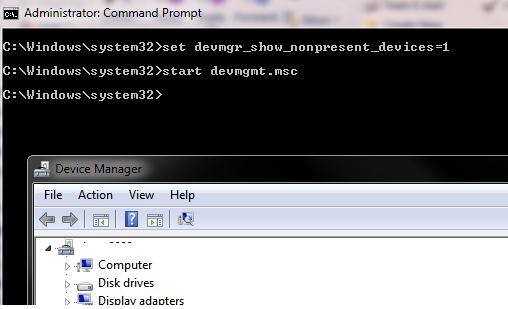
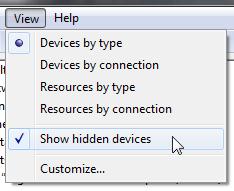
- Select View->Show Hidden Devices in the console menu.
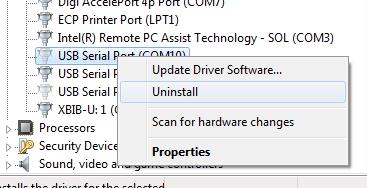
- Expand Ports (COM & LPT) branch and find the device, which is assigned the necessary COM port in the list. (A pale icon means that this COM port is already assigned, but currently the device is not connected) Right-click it and select Uninstall.
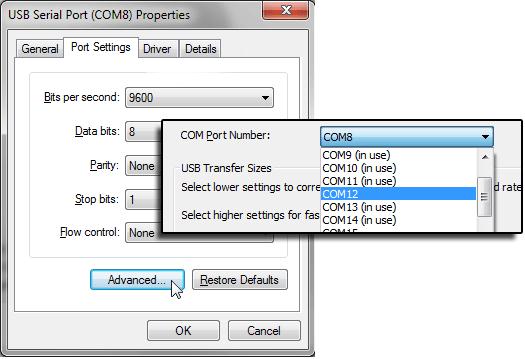
- The freed up COM port can be assigned to another device. Find your device in the same branch, and open the Properties window. Then go to the Port Settings tab and click Advanced. In the dropdown list, select the free COM port.
This method is not always useful in trying to free up a busy COM port. Then you will have to make some changes to the registry.
- Reset the COM Port by using the Registry
The information about busy COM ports is stored in CommDB registry key in HKEY_LOCAL_MACHINE\SYSTEM\CurrentControlSet\Control\COM Name Arbiter section.
- Open the Registry Editor (regedit) and go to the branch mentioned above.
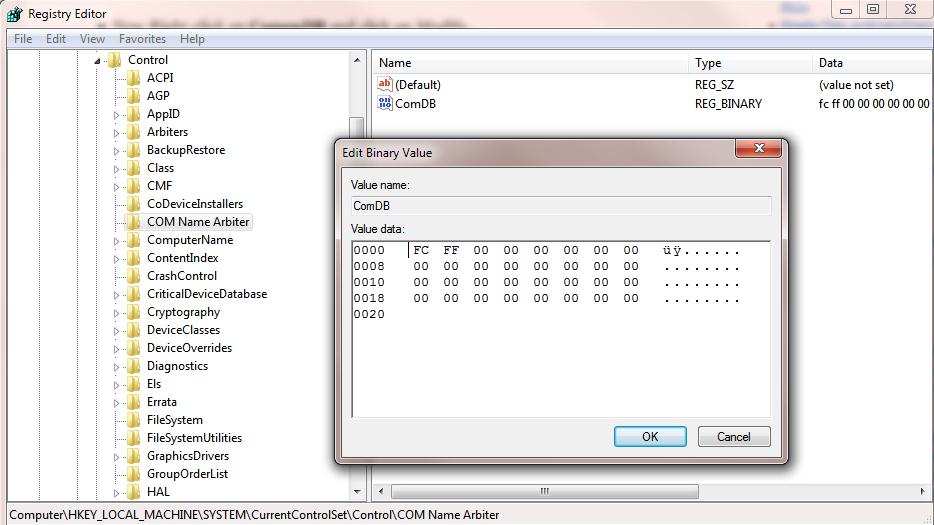 Important! We strongly recommend to back up this registry branch (File -> Export) before doing anything. If something goes wrong, you can get back to the original port configuration.
 - The value of ComDB parameter in the binary format determines the list of COM ports reserved in the system. Each bit determines the state of the corresponding port (from 1 to 255). For example, if you need to leave the reservation only for COM3, the hex value of ComDB is equal to 04 (0000 0100)
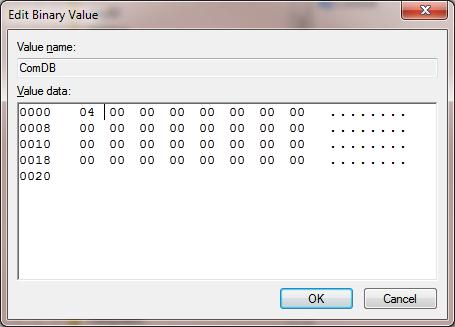 Important! Be very attentive, and don’t add any additional bits to the parameter, or the system will display the BSOD.
 - If you have to reset all COM port bindings, change the value of ComDB to 0.
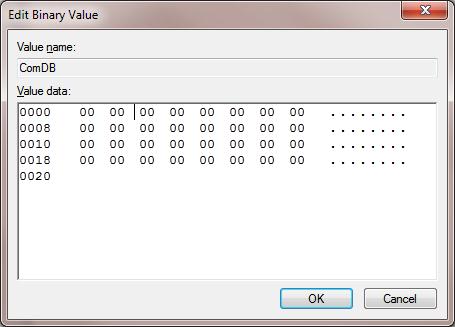 Note. In HKEY_LOCAL_MACHINE\HARDWARE\DEVICEMAP\SERIALCOMM section, you can see the list of COM ports connected to the system.
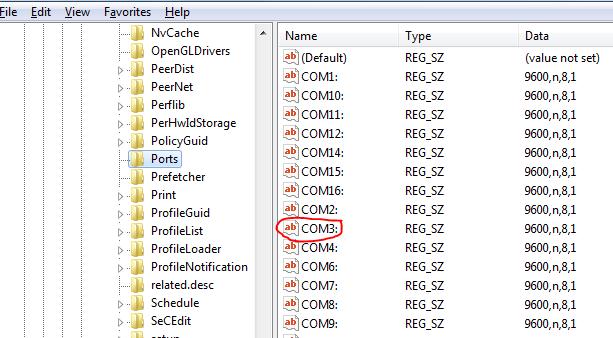
- The HKEY_LOCAL_MACHINE\SOFTWARE\Microsoft\Windows NT\CurrentVersion\Ports branch contains the list of all assigned COM ports. All unnecessary ports may be deleted. In our example, we’ll leave only COM3 and delete the rest ports.
- Unplug all external devices and restart your computer.
- After the restart, connect the devices in the necessary order. (Reinstall USB-to-serial converters, etc.) All COM ports found by the system will be automatically identified by the system and assigned the COM port numbers one by one.
Article Search Index: 20190629
